
(818) 928-1060
|
PRODUCTS for Every Need |
|
Business
Forms Checks & Security Printing Media Labels (for Operations) Labels (Prime for Products) Labels (Blank Stock ) Equipment Marketing /Sales Literature Stationery & Envelopes ID & Phone Cards |
|
SERVICES for Every Need |
|
Design Services Warehousing & Logistics Mailing & Fulfillment On-Line Capabilities Company Store Print Buying Project Management Data Mgmt/Re-Purposing Label & Tag Imprinting |
| RESOURCES & SUPPORT |
|
Color (CMYK vs. RGB) Software Downloads Barcode Tips & Symbology Omega Forms & Documents Print News / Quik Links Printing Industry Trade Customs |
| ABOUT US |
|
What makes us unique Why Choose Omega How to Contact Omega What Types of Businesses Work with Omega
Did you know in 2007 Omega was the
Learn how we may |

Placing an Internet Order
Log onto OmegaOnline. If any of the LOG IN fields are input incorrectly, the message "Unable to log in...Click here to try again" appears.
Select Place Order/Last Order History from the OmegaOnline sidebar menu.
The Shipping Method and Invoice Recipient information has been moved to the beginning of the Place Order window. This change allows the system to limit both the information and items displayed to those the individual user has access to.
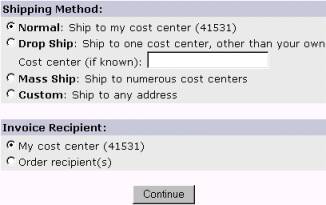
The Shipping Method and Invoice Recipient choices can be limited through Administration, user setup. If you wish to ship to a location other than your own, click on the appropriate selection.
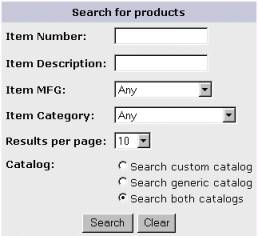
Items can be found by filling in the search fields or simply clicking on Search. You can narrow the search by selecting Item MFG., Item Category or the Catalogs to search.
-
Search custom catalog will search the client catalog - all items that have been selected as Upload Item to Internet on the Image tab of Item Maintenance in Quantum 2000.
-
Search generic catalog searches through distributor catalogs your distributor has exported from Quantum 2000.
The Product Listing window opens, listing the page number and results found.
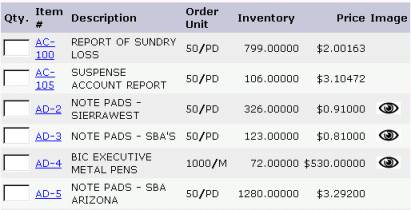
Input the number of units you wish to order in the Qty. box next to the item. (To view order history and item information, click on the Item #. To view the last few order quantities, click in the Qty. box that corresponds to the item.) Click on an Eye icon (if available) to view the item.
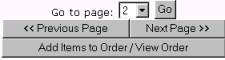
Select the Add Items to Order/View Order button at the bottom of the page to View the order.
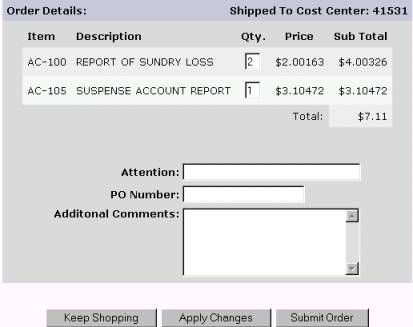
Verify the information on the Order Detail is correct, fill in the Attention, PO Number and Additional Comments fields, if desired. Click Submit Order to prepare the order for submission to the Quantum 2000 program. To Keep Shopping or Apply Changes you have made to the order, click the appropriate button before submitting the order.
The message:
"Your Order (#order) was submitted."
"Click here to place another order." will open.
If you have an e-mail address you will receive an e-mail from your distributor recapping your order information.
Select a task bar menu item to continue OmegaOnline tasks, or Logout to end the OmegaOnline session.